Contact Us | +1 888 239-0733 (Toll free US/CA) Mon-Fri: 7:30am to 4:30pm (PST)
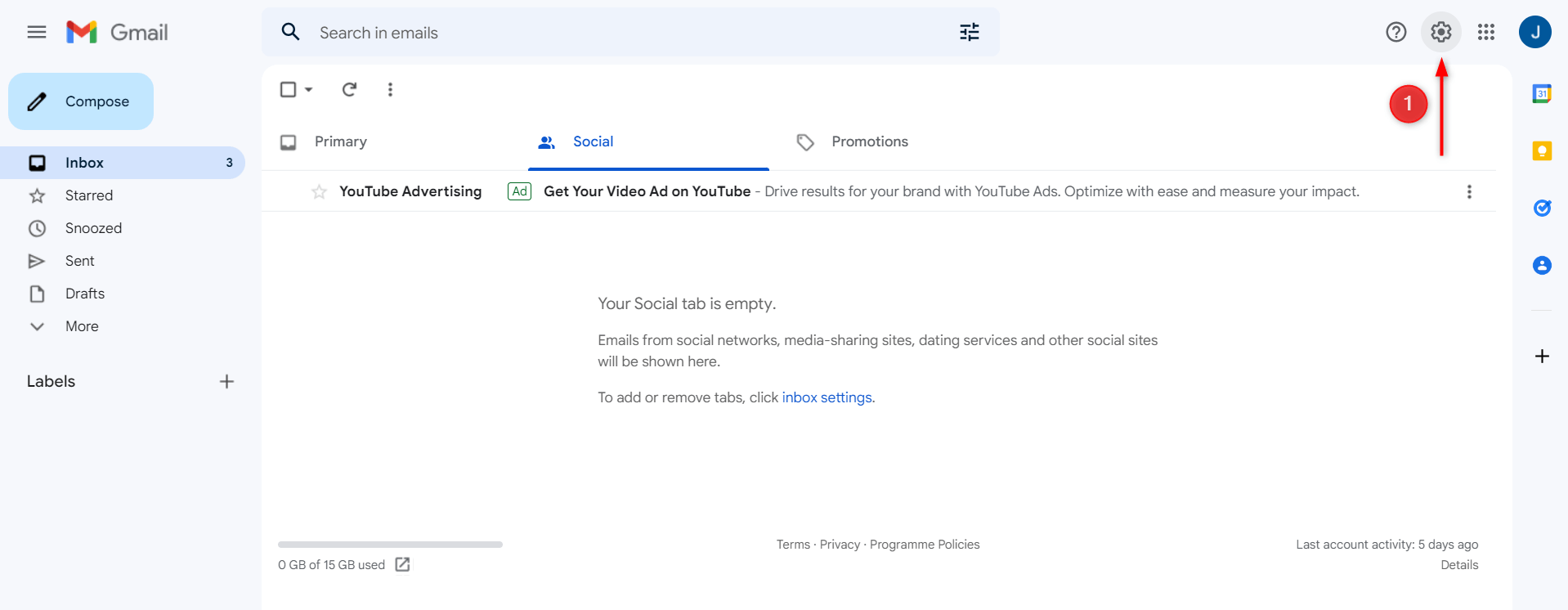
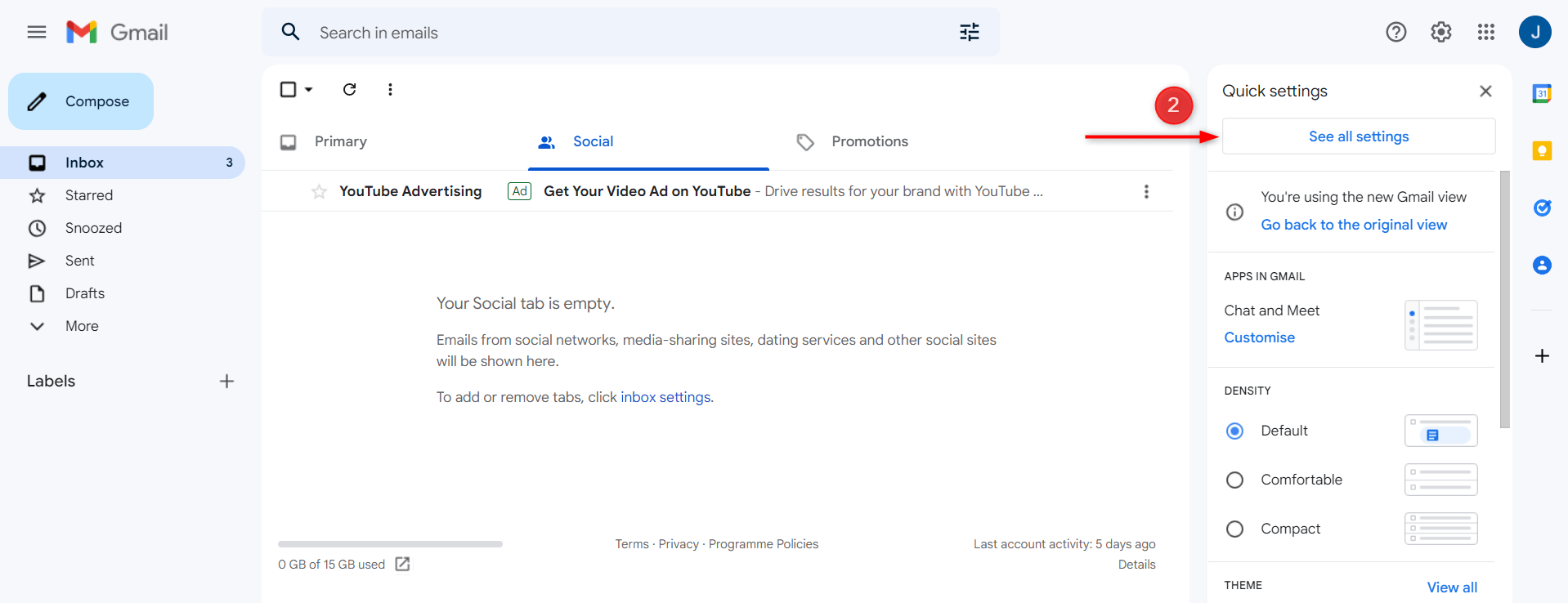
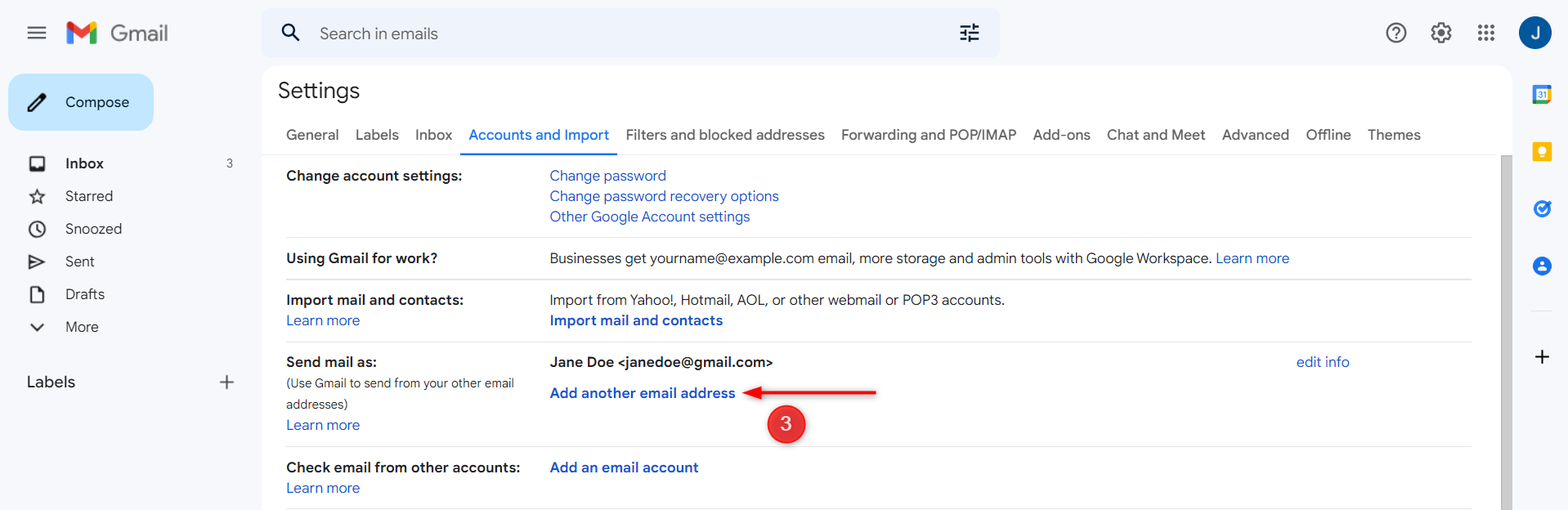
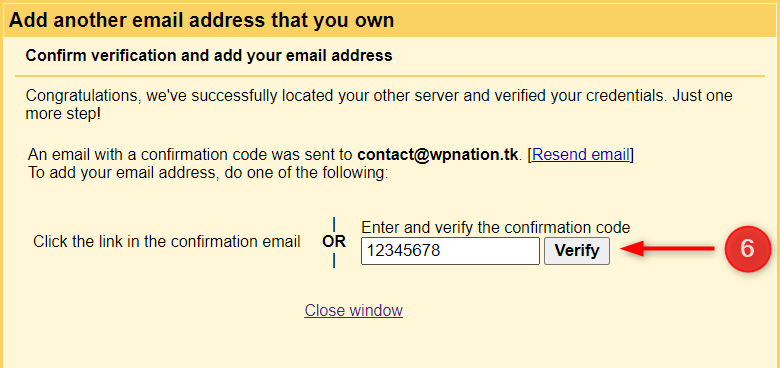
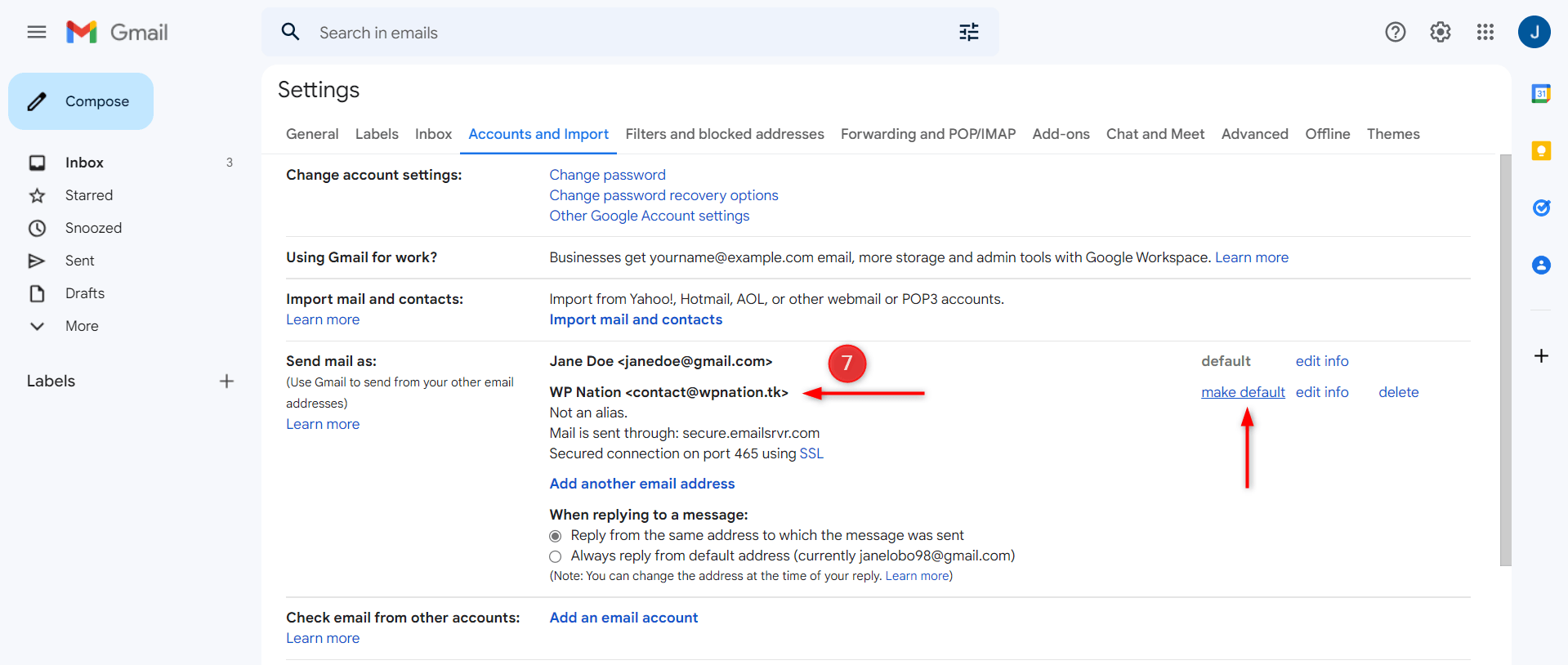
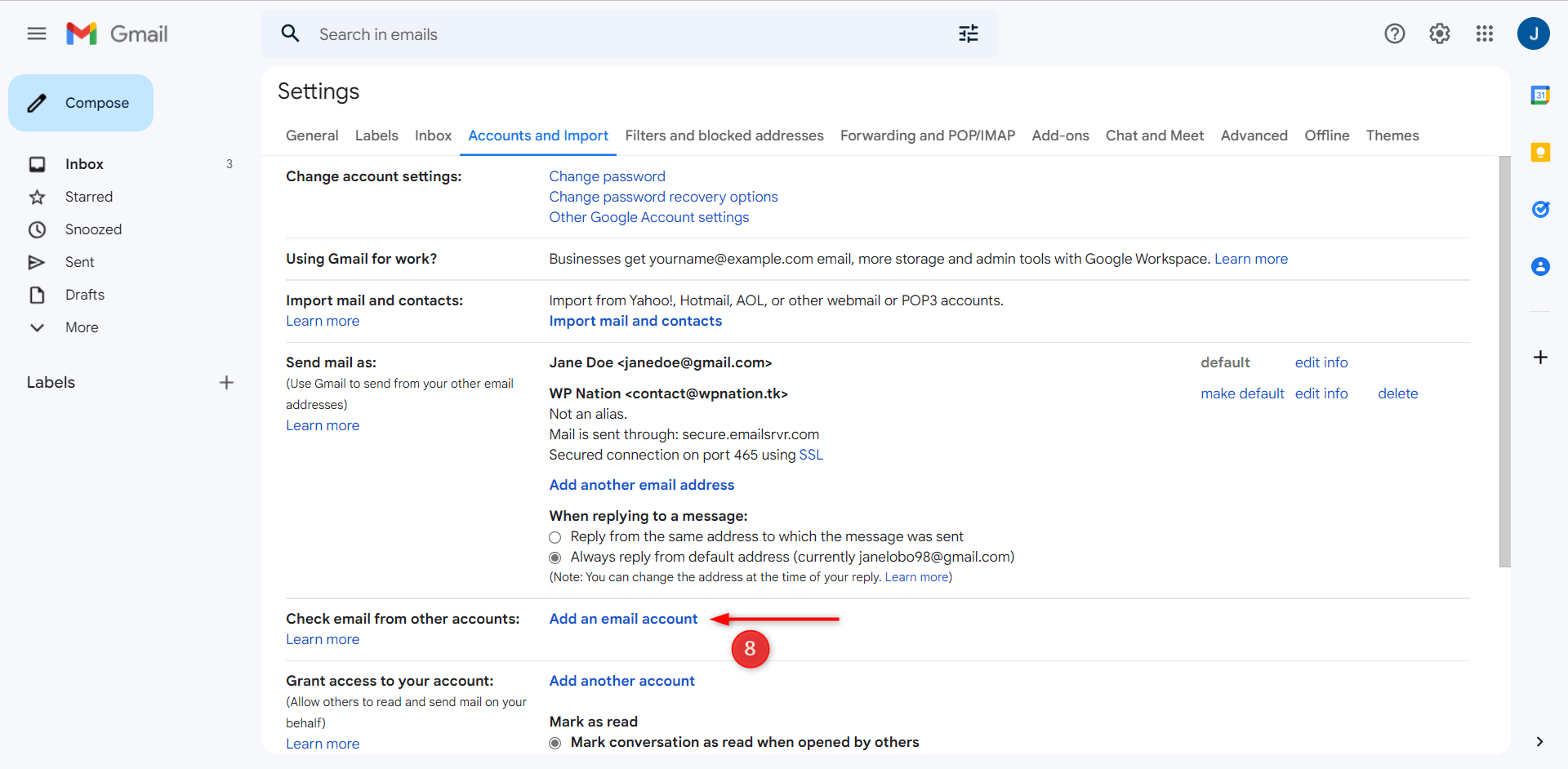
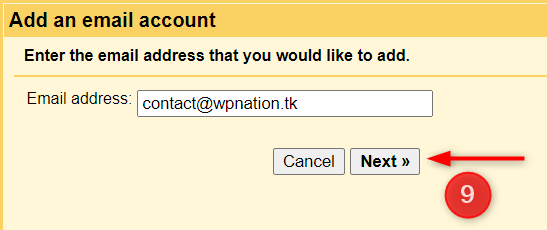
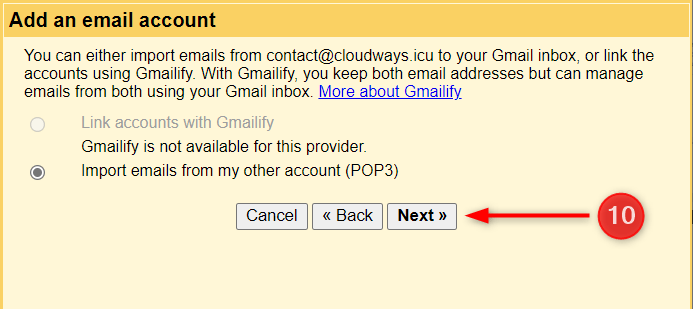
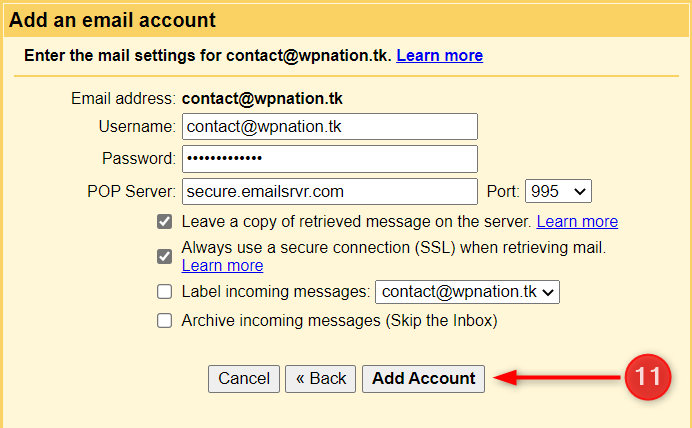
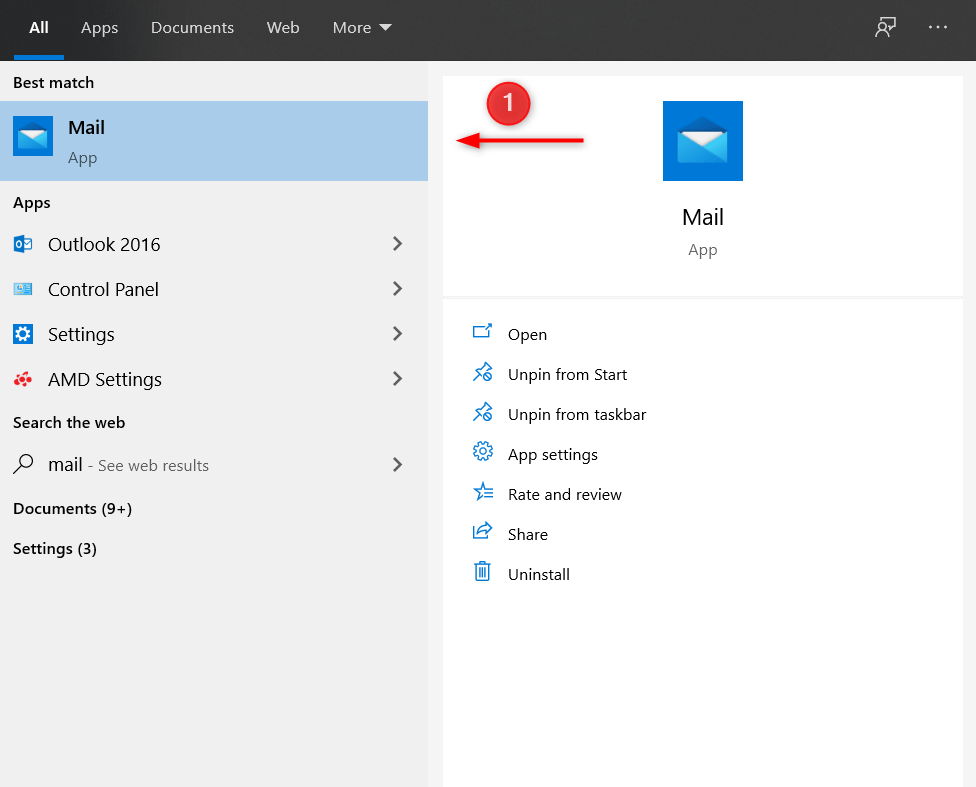
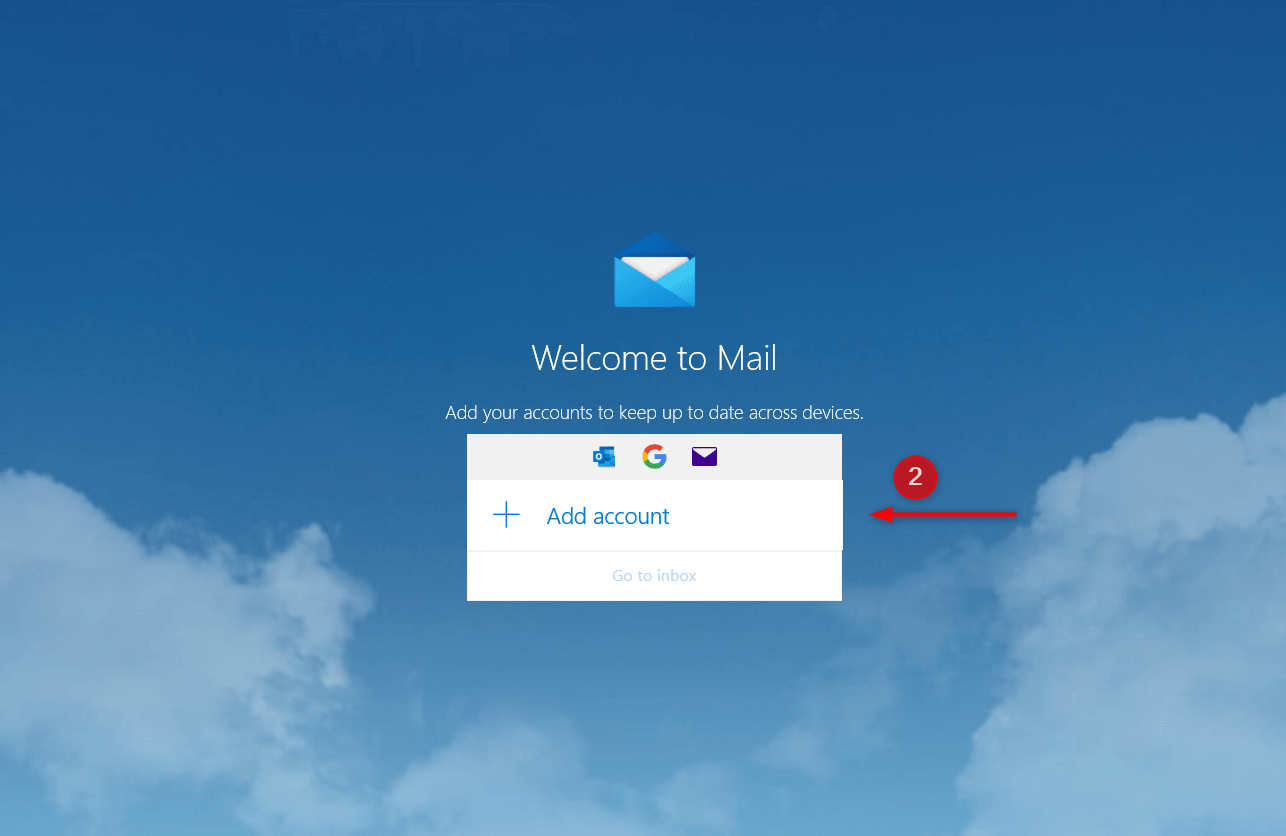
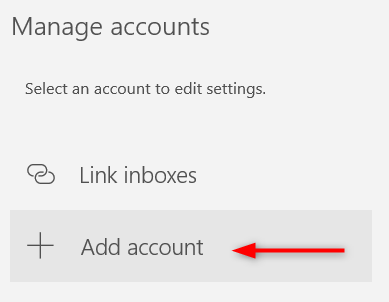
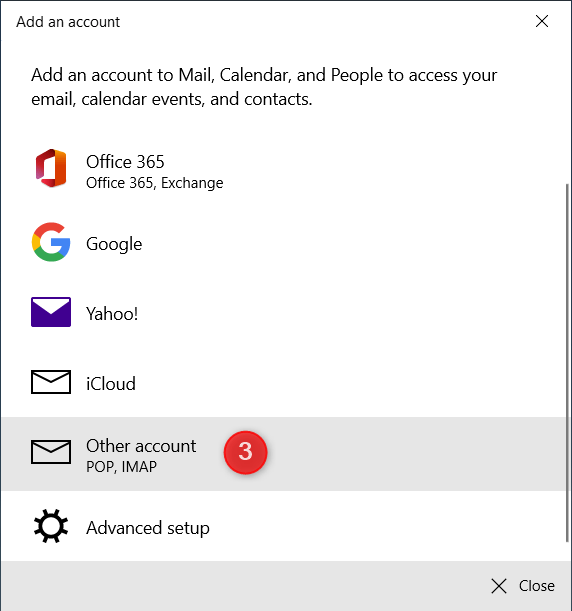
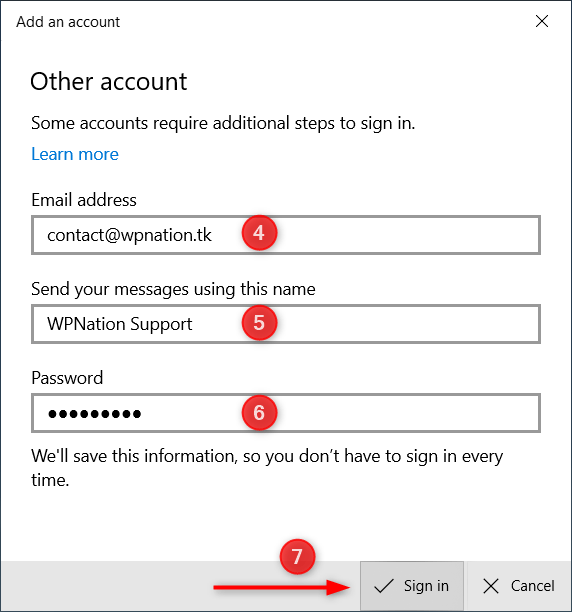
Learn how to Configure My Email Client with Rackspace Mailbox using IMAP/SMTP. Set up on Gmail, Outlook, iOS Mail, Thunderbird, & more. Want to access your Rackspace email through Gmail, Outlook, Thunderbird, or iOS Mail? This guide walks you through the complete setup process using secure IMAP and SMTP settings. Whether you're setting up for the first time or troubleshooting connection issues, you’ll learn how to easily configure your email client, send and receive messages, and ensure proper syncing with your Rackspace mailbox. TL;DR? Read the summary of this article: Table of Contents: You can access your Rackspace mailbox through any email client of your choice, such as Gmail, Outlook, Thunderbird, or iOS Mail. While using an email client is optional—you can always log in via Rackspace Webmail—it offers more convenience for day-to-day communication. This guide uses the IMAP protocol to configure your mailbox, allowing you to sync messages across multiple devices while keeping a copy stored securely on Rackspace servers. Your Name: Your Name or Business Name Name: Your Name or Business Name Treat as an Alias: Uncheck it (For details, visit this article) Click Next Step. SMTP Server: secure.emailsrvr.com Port: 465 Password: Your Rackspace Mailbox Password Connection: Select the Secured connection, using SSL (recommended) Next, click Add Account. If you plan to use your Rackspace email address most regularly instead of your Gmail address, you can make it the default sending address by clicking Make Default which is optional. Username: Your Rackspace Mailbox Email Address Password: Your Rackspace Mailbox Password POP Server: secure.emailsrvr.com Port: 995 Leave a Copy of Retrieved Messages on the Server: Check it if you would like to keep a copy of each message Gmail retrieves from your Rackspace Webmail. All the emails are then available in both places. This way, you can access mail in your other accounts and Gmail. (For details, visit this article). Always Use a Secure Connection (SSL) When Retrieving Mail: Check it. (For details, visit this article). Label Incoming Messages: It is optional if you want to label your incoming messages. Archive Incoming Messages: It is optional if you want to archive your incoming messages instead of going to the inbox. Finally, click Add Account. Gmail will now start fetching emails from your Rackspace mailbox periodically so you can view and manage emails from the Gmail client. Congratulations! You have successfully configured your Rackspace mailbox with Gmail. The email fetching and syncing process between Gmail and your Rackspace mailbox may take some time based on the amount of email data to be fetched. If you’ve used the Mail app before, visit Settings > Manage Accounts > Add Account. That’s it! You have successfully configured your Rackspace mailbox with the Windows Mail client. The syncing process between Windows Mail and your Rackspace mailbox may take some time based on the amount of email data to be fetched. If you’ve used Outlook before, visit File > Add Account. Your Name: Your Name or Business Name User Name: Your Rackspace Mailbox Email Address Congratulations! You have successfully configured your Rackspace mailbox with Microsoft Outlook. The syncing process between Outlook and your Rackspace mailbox may take some time based on the amount of email data to be fetched. Your Name: Your Name or Business Name Once done, click Manual Config. If you’ve used the Thunderbird before, visit Menu > New > Existing Mail Account. Email Protocol: IMAP Email Protocol: SMTP Once done, click Re-test. That’s it! You have now set up Mozilla Thunderbird to work with your Rackspace mailbox. The syncing process between Thunderbird and your Rackspace mailbox may take some time based on the amount of email data to be fetched. Name: Your Name or Business Name Once done, click Next. Email Protocol: IMAP Host Name: secure.emailsrvr.com Host Name: secure.emailsrvr.com Once done, tap Next. Congratulations! You have successfully configured your Rackspace mailbox with the Mail application. The syncing process between the Mail client and your Rackspace mailbox may take some time based on the amount of email data to be fetched.How to Configure My Email Client with Rackspace Mailbox?
Default IMAP Settings
Login Name: Your Rackspace Mailbox Email Address
Password: Your Rackspace Mailbox Password
Account Type: IMAP
Incoming Mail Server: secure.emailsrvr.com
Outgoing Mail Server: secure.emailsrvr.com
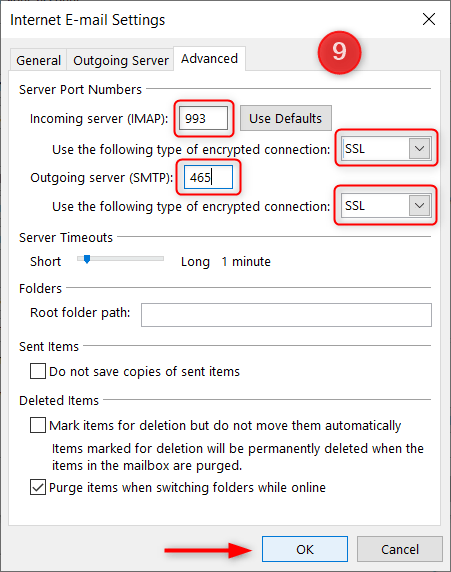
Incoming Mail Server (IMAP) TCP Port: 993 (SSL)
Outgoing Mail Server (SMTP) TCP Port: 465 (SSL)Gmail
Email Address: Your Rackspace Mailbox Email Address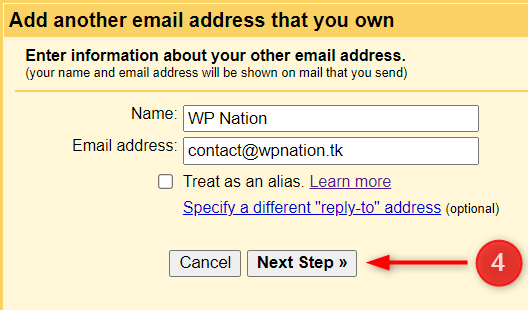
Username: Your Rackspace Mailbox Email Address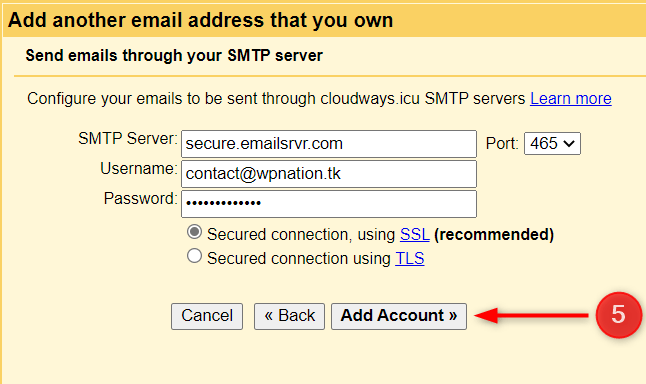
Windows Mail
Microsoft Outlook
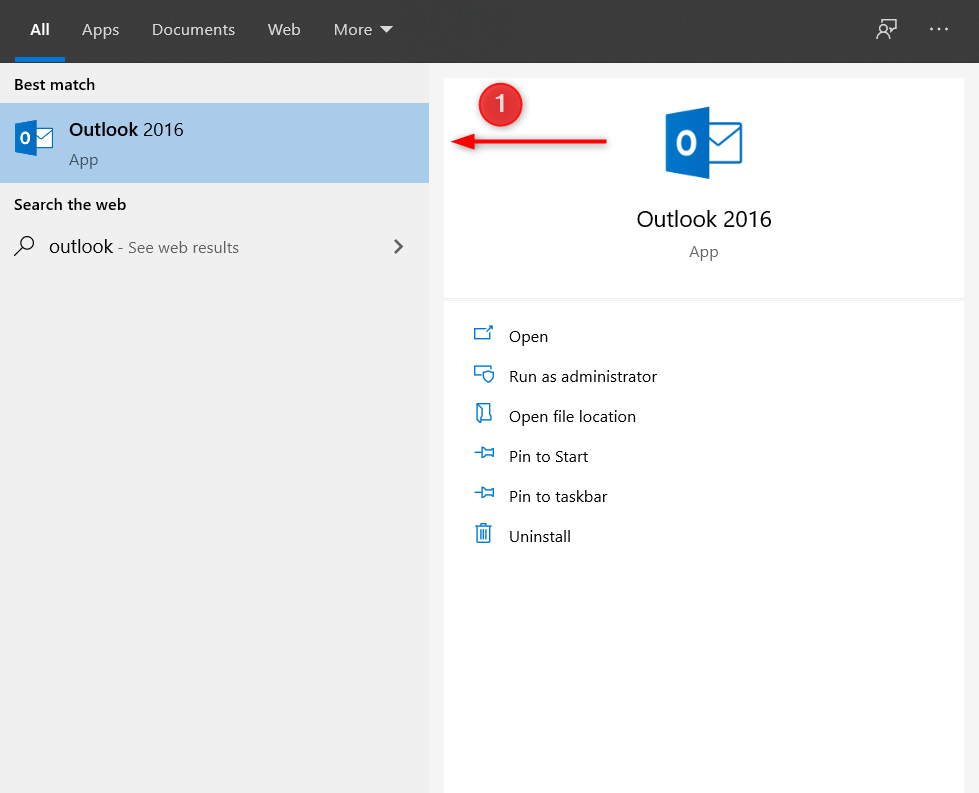
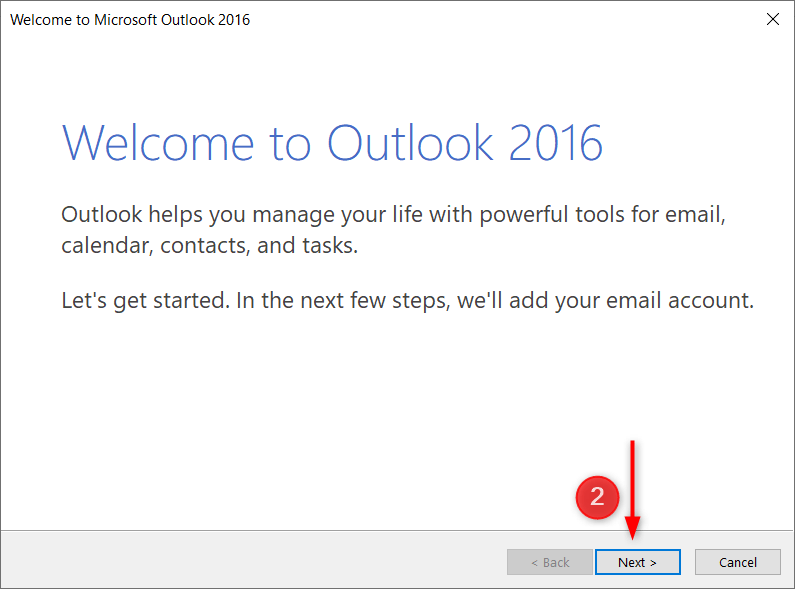
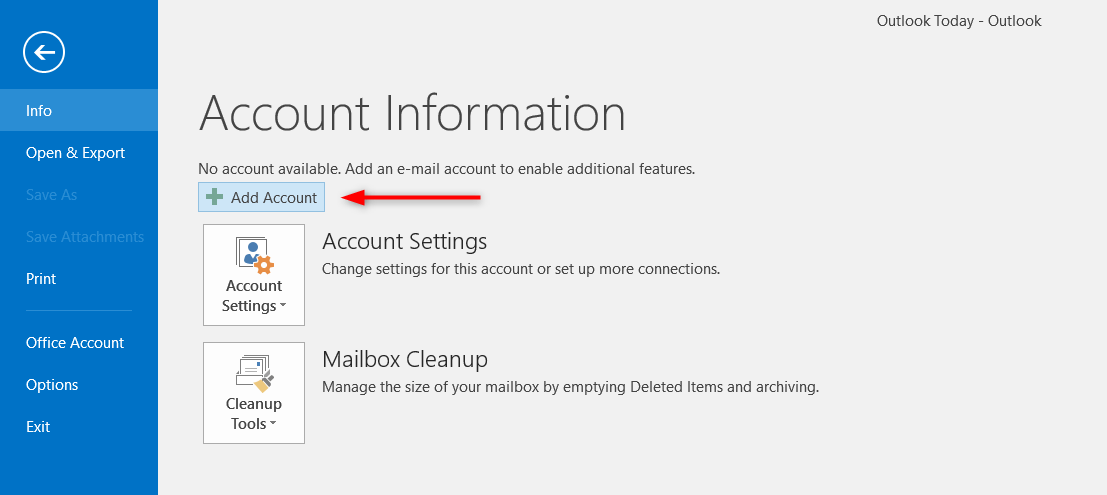
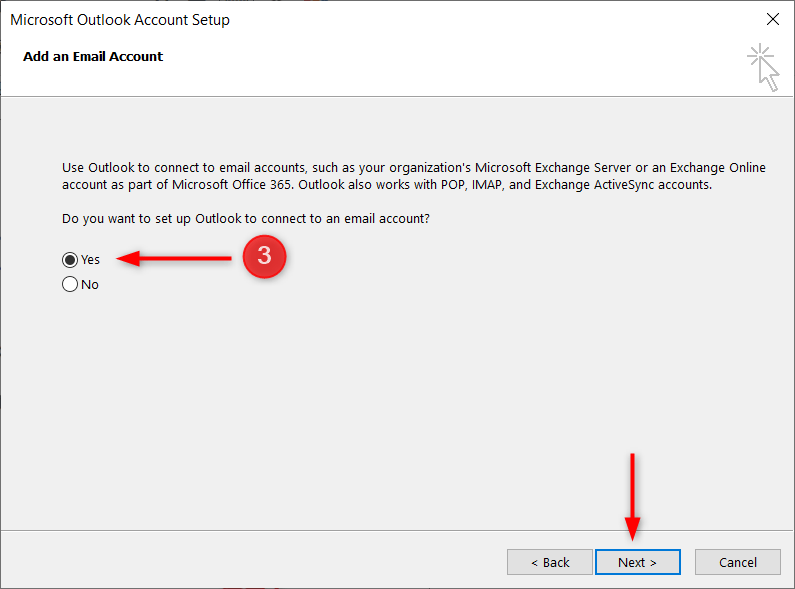
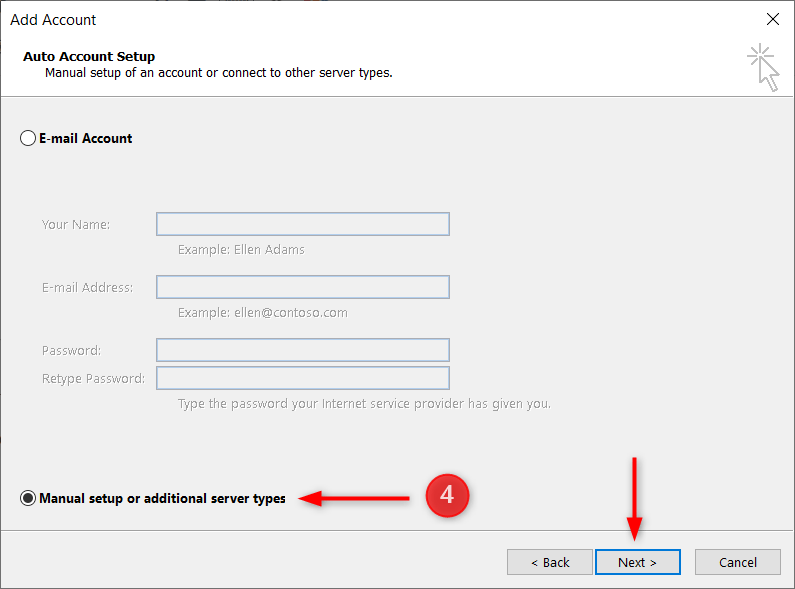
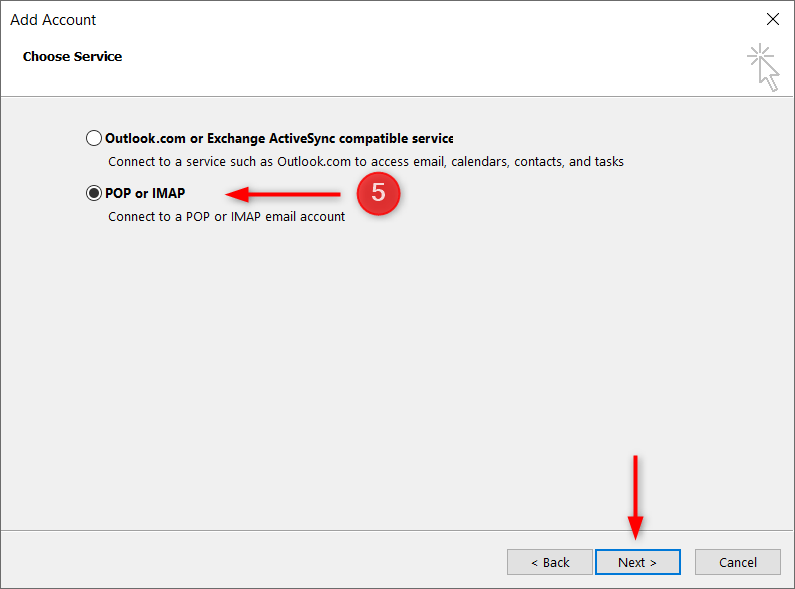
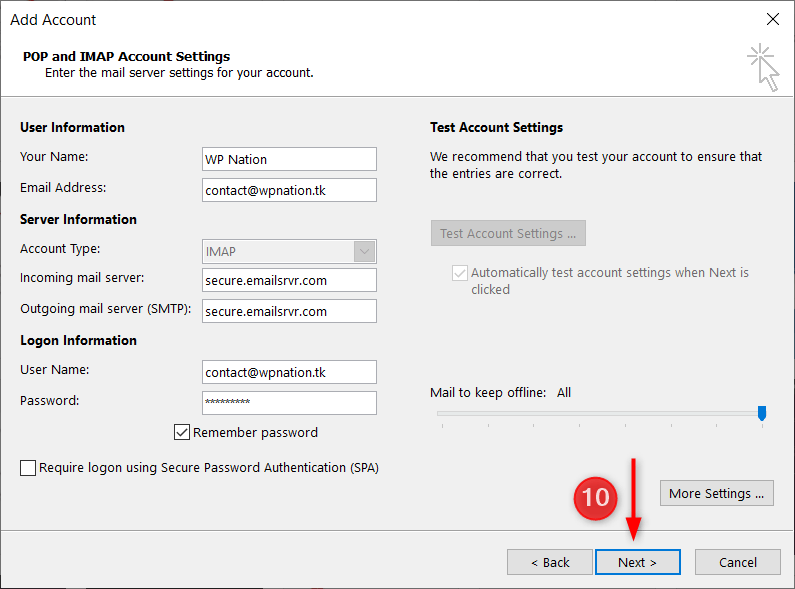
User Information
Email Address: Your Rackspace Mailbox Email Address
Account Type: IMAP
Incoming Mail Server: secure.emailsrvr.com
Outgoing Mail Server: secure.emailsrvr.comLogon Information
Password: Your Rackspace Mailbox Password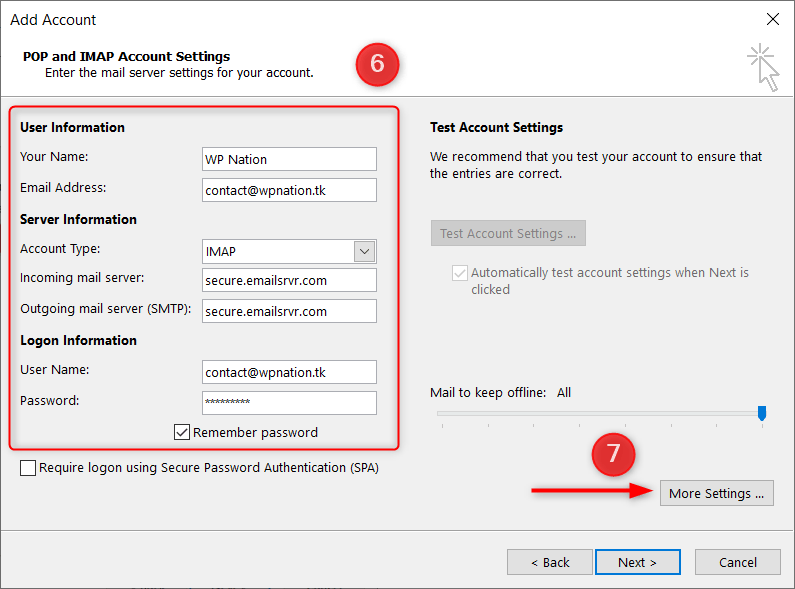
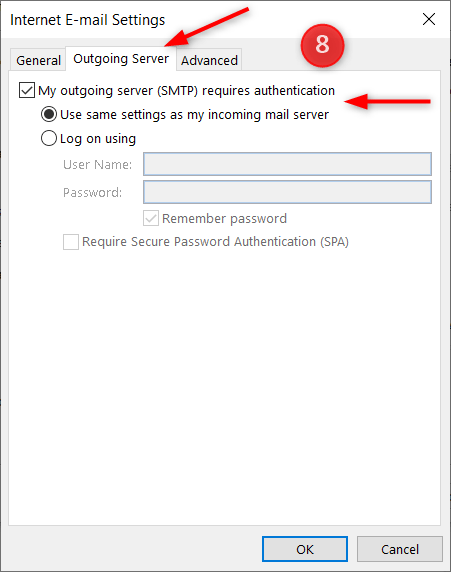
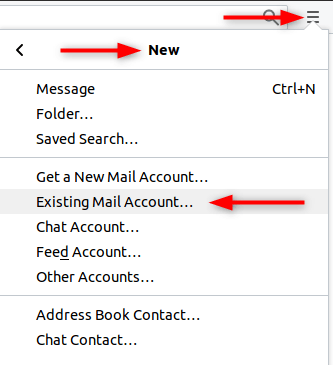
Mozilla Thunderbird
Email Address: Your Rackspace Mailbox Email Address
Password: Your Rackspace Mailbox Password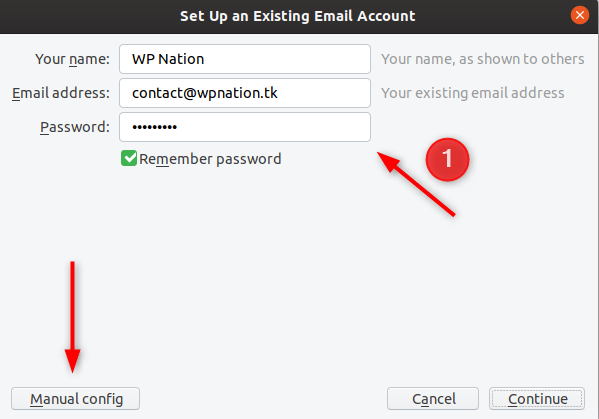
Incoming
Server hostname: secure.emailsrvr.com
Port: 993
SSL: SSL/TLS
Authentication: AutodetectOutgoing
Server hostname: secure.emailsrvr.com
Port: 465
SSL: SSL/TLS
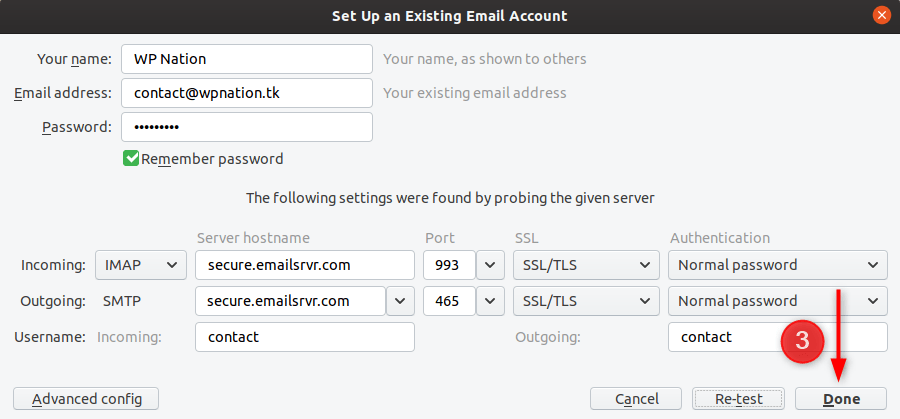
Authentication: Autodetect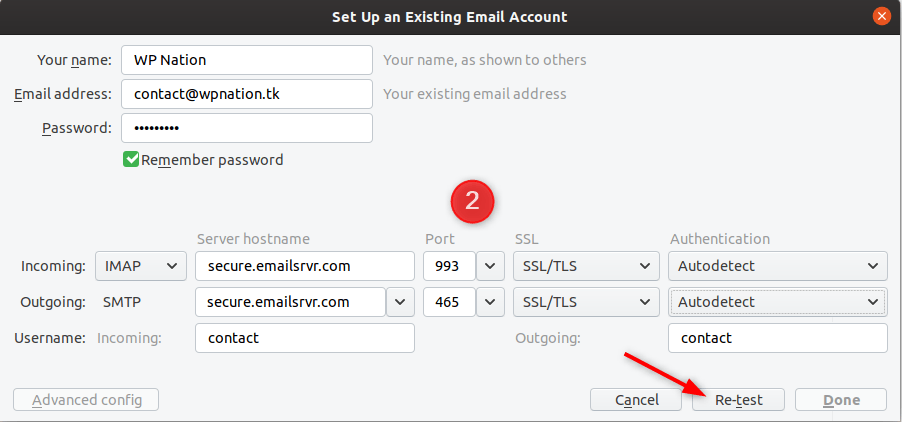
iOS Mail
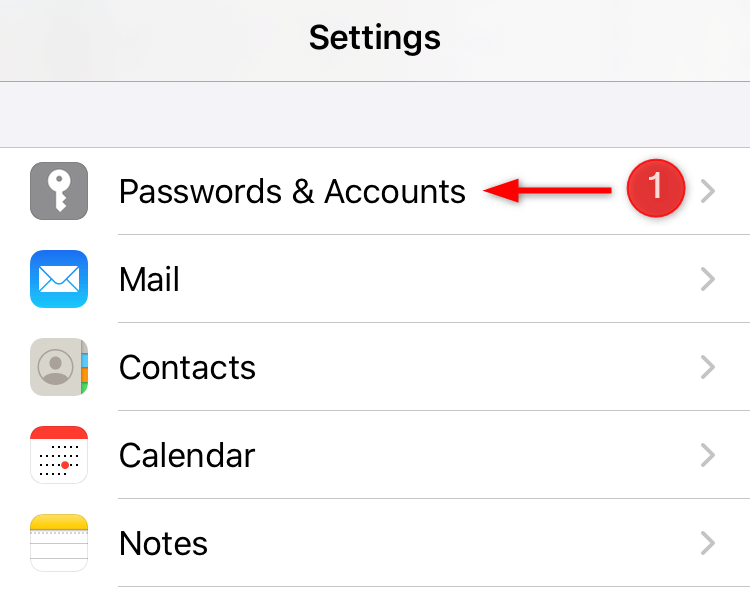
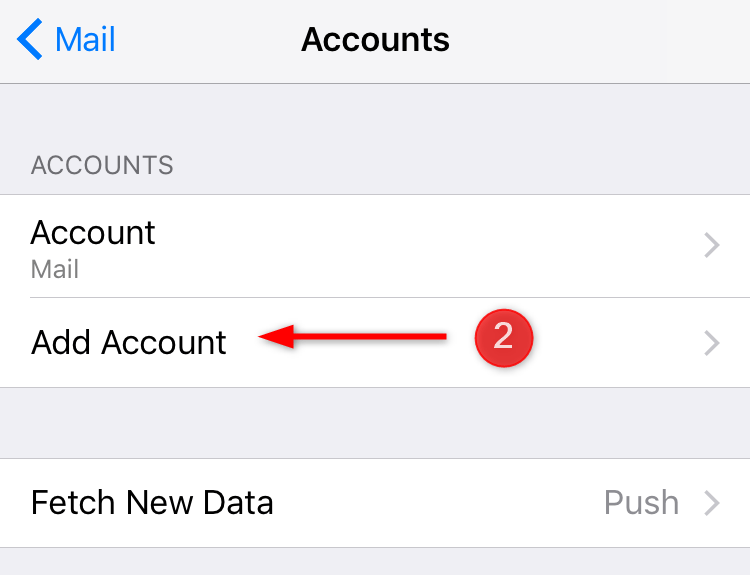
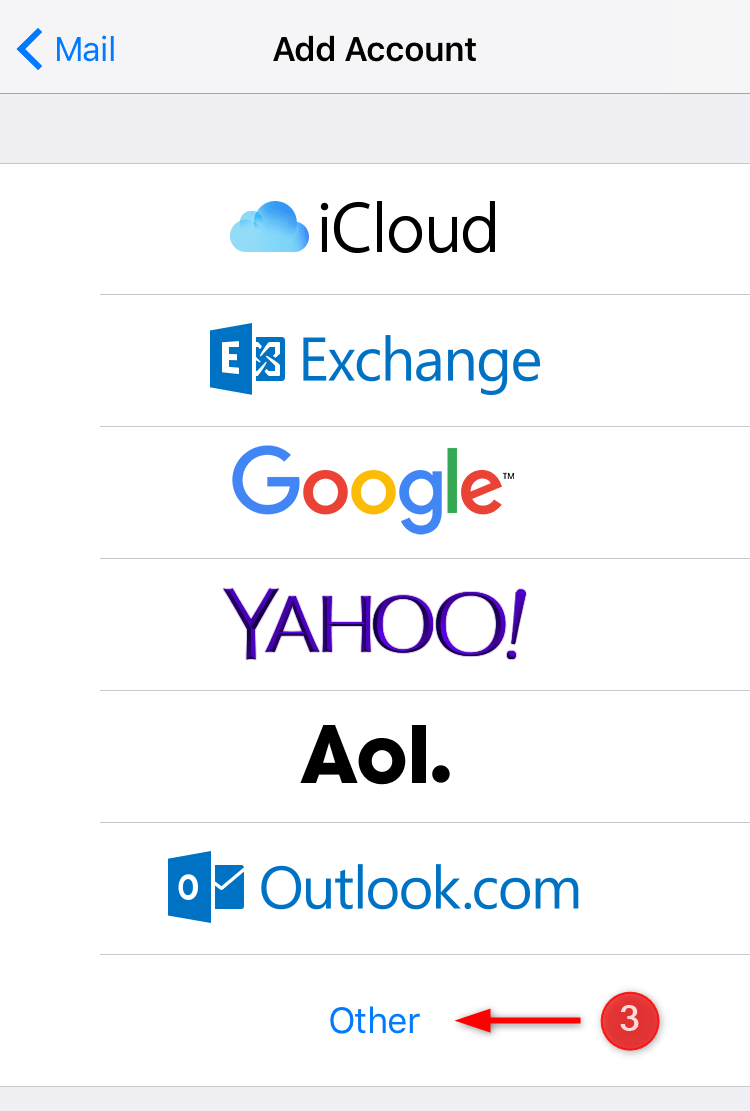
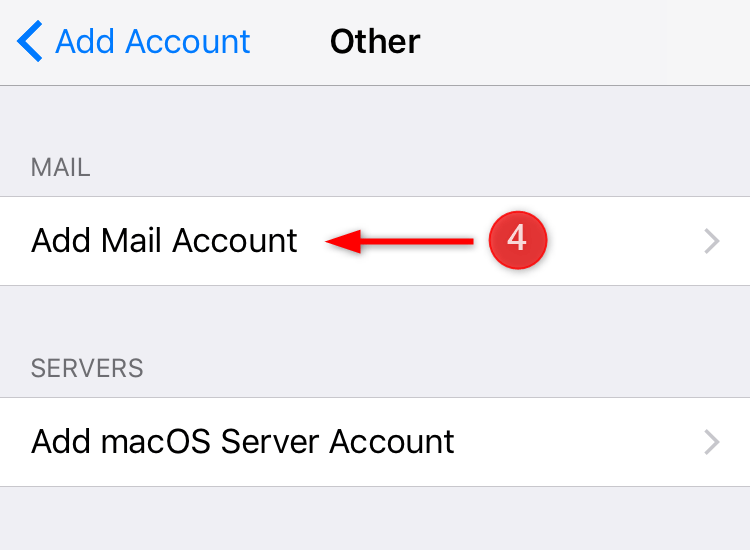
Email Address: Your Rackspace Mailbox Email Address
Password: Your Rackspace Mailbox Password
Description: Anything you’d like!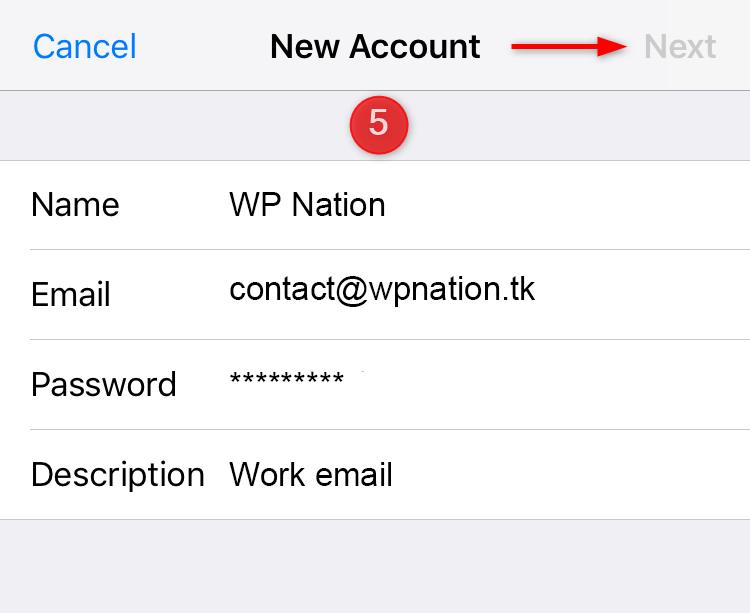
Incoming Mail Server
Username: Your Rackspace Mailbox Email Address
Password: Your Rackspace Mailbox PasswordOutgoing Mail Server
Username: Your Rackspace Mailbox Email Address
Password: Your Rackspace Mailbox Password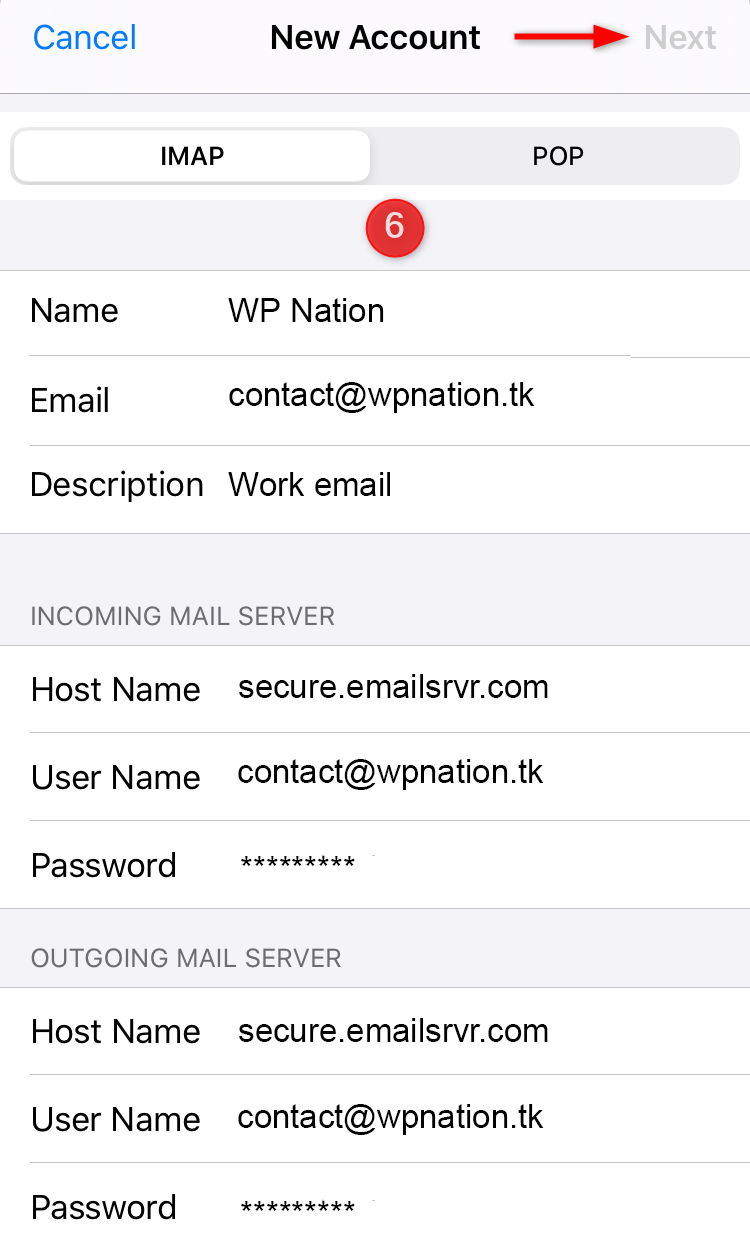
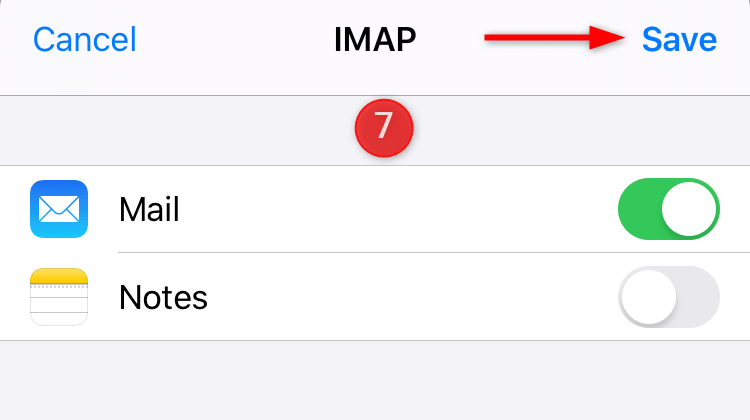

"*" indicates required fields